How do I add someone to My Circle?
There are 2 different ways to become someone else's caregiver:
• You can be a caregiver for someone over 18 who already has a MyQuest® account (or wants to create one). For this type of connection, you send them a request asking to be their caregiver (see below).
• The second type of caregiver is one who creates a dependent/sub-account for a child or adult dependent. To be a caregiver in this relationship, you must be a verified personal representative for the dependent. To be identified as a verified personal representative for an adult dependent, you must provide legal documentation (eg, a birth certificate, court documents, power of attorney, a health proxy). For a child dependent, you must attest that you are the parent or legal guardian; you do not need to provide any legal documentation. In this situation, you'll create their MyQuest account (see below).
|
Note: You have to be 18 or older to be someone's caregiver or create a dependent/sub-account. |
 If you want to be another adult's caregiver (who isn't a dependent), use these steps.
You'll need to know this person's full name and email address.
1 Sign in to your MyQuest account.
2 Click the person ( ) icon > Account settings.
3 Click MyCircle.
4 On the Manage MyCircle page, click Add a family member.
5 On the Select how to grow your circle page, in the Request to be someone else's caregiver section, click Send request.
6 Enter their first name, last name, and the email address they use for their MyQuest account.
7 Click Send request.
Quest sends an email on your behalf with your request for caregiver access.
• If the person already has a MyQuest account, they click the link in the email to accept your request to be a caregiver
• If they don't have a MyQuest account, they can create a MyQuest account using a link in the email and then accept your caregiver request
Once the person accepts, they appear in your circle.
If you are the parent or legal guardian of a minor, use these steps to create a child dependent/sub-account.
The dependent/sub-account will be linked to your account, and can only be accessed when you sign in to your MyQuest account.
|
Note: If you update your personal information or email address in the future, you'll need to re-verify your identity. Until you do so, you won't be able to view your dependent's results (or your own). |
1 Sign in to your MyQuest account.
2 Click the person () icon > Account settings.
3 Click MyCircle.
4 On the Manage MyCircle page, click Add a family member.
5 On the Select how to grow your circle page, in the Create a dependent account section, select Parent or legal guardian of a minor.
6 Click Create sub-account.
7 On the Dependent information page, type their information and click Next.
8 On the Terms page, review the terms and click I agree.
9 On the Attestation page, in the Your relationship to patient box, select the choice that describes your relationship.
10 Check the box below certifying that you are the parent or legal guardian.
11 Click I agree.
12 On the Success page, click Dismiss to return to the MyCircle settings page.
If you have legal authority for another adult, use these steps to create an adult dependent/sub-account.
The dependent/sub-account will be linked to your account, and can only be accessed when you sign in to your MyQuest account.
|
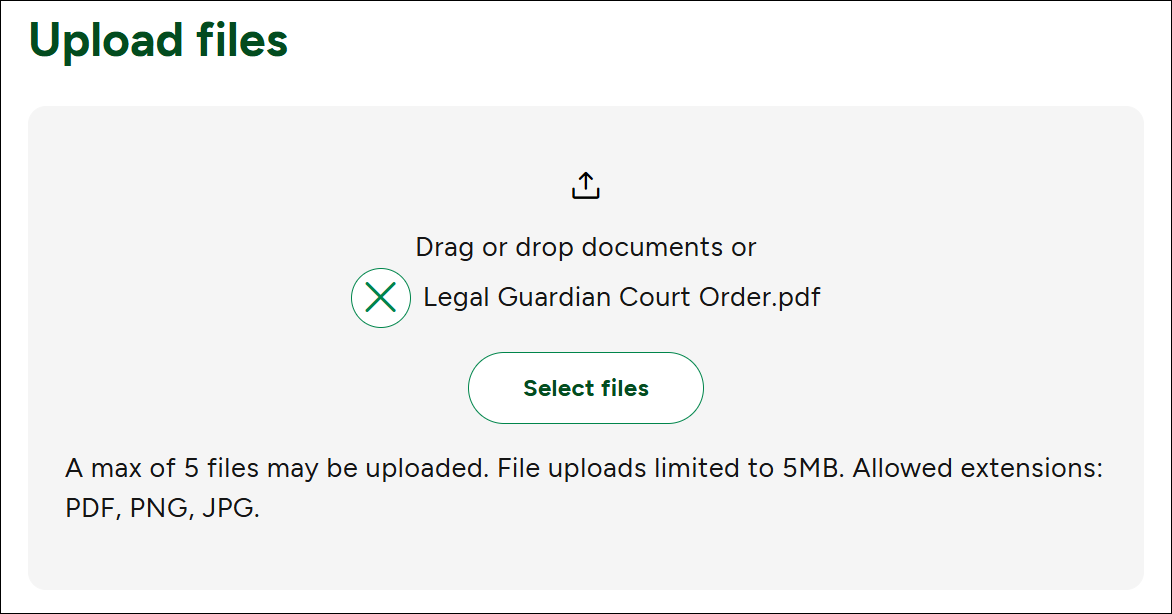
Note: You'll need to upload an electronic copy of legal documentation that verifies your status as a personal representative. Files must be 5 MB or less in size and in .png, .jpg, or .pdf format. |
1 Sign in to your MyQuest account.
2 Click the person () icon > Account settings.
3 Click MyCircle.
4 On the Manage MyCircle page, click Add a family member.
5 On the Select how to grow your circle page, in the Create a dependent account section, select Legal guardian of adult.
6 On the Dependent information page, type their information and click Next.
7 On the Terms page, review the terms and click I agree.
8 On the Legal Documentation page, in the Your relationship to patient box, select the appropriate type of relationship.
9 In the Upload files section, drag your electronic copy(ies) of the legal documents that name you as the personal representative into the gray area to attach them.
Alternately, click Select files to locate them on your device, and click Open to attach them.
10 Click I agree.
11 On the Success page, click Dismiss. You'll now see your dependent's name in My Circle with a status of In Review.
Approximately 2 business days after your documentation is uploaded, you'll receive an email telling you if your request is approved or denied. If your request is approved, In Review changes to Authorized Access. You'll be able to see your dependent's Quest information. If you are denied, the email will tell you why.